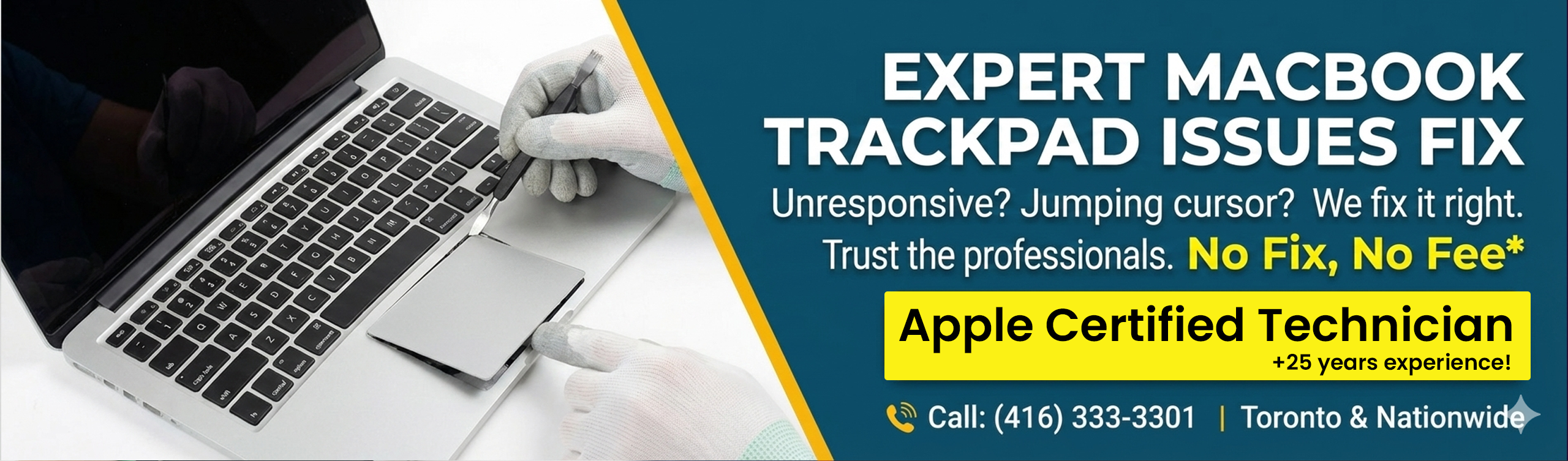
MacBook Trackpad issues?
If your trackpad stopped working for the following reasons:
- The battery underneath has swollen so much that it is now cracked and/or it is not responsive because of the pressure.
- The trackpad suffered some liquid damaged.
- A heavy object was dropped on it.
- For unknown reasons, your Trackpad is acting erratically.
No matter the reason or the problem, we can fix it, we can undo it!
Here are some tips and shortcuts for your MacBook Trackpad:
Right-click: All you have to do is tap with two fingers.
Scroll: Just slide two fingers up or down.
Zoom in/out: Pinch with two fingers to zoom in or out.
Show desktop: Spread three fingers and thumb.
Show all the apps you’re using: Swipe down with four fingers.
Swipe between pages: Swipe left or right with two fingers to switch to previous or next page.
Swipe between apps: Swipe three or four fingers left or right to switch between full-screen apps and desktop
Rotate an object: Move a thumb and a finger around an object (like photo) to rotate it.
Open Launchpad: Pinch three fingers and thumb.
Show mission control: Swipe up with four fingers